


Accept Bitcoin Donations on Your Website: Payment Widget
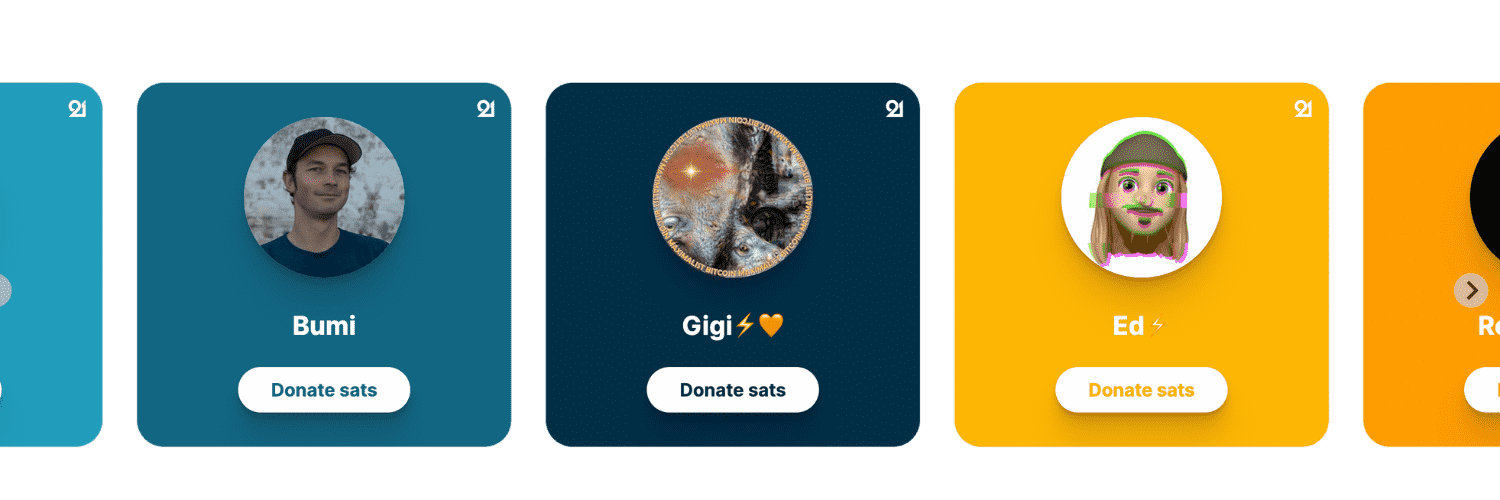
Do you run a website or blog and want an easy way to receive donations over Lightning?
Let’s look at a widget that takes less than 15 minutes to install.
Payment Widget is a plugin that lets you accept Bitcoin donations on any website. Setup takes only a few minutes: add an HTML tag to the page where you want to receive sats. Donations arrive instantly and without fees thanks to the Lightning Network. The widget works with Lightning wallets and requires no account.
In this guide, we’ll cover how to:
- Get a Lightning address to receive donations.
- Add the tag to your website.
- Customize the tag to give the widget a “Matrix” background.
Payment Widget configuration example:
Step one: Create a Lightning address.
To receive donations instantly, you’ll need a Lightning Network receiving address. The widget does not hold any bitcoin on your behalf; funds go directly to the personal wallet you choose.
In practice, Lightning addresses look like ordinary email addresses. Their two main advantages are that they can be reused indefinitely and are easy for people to remember. If you already use a Lightning wallet, it may let you create an address like this.
I used LightningTipBot , a wallet in the form of a bot on Telegram. The easiest way to get an address in five minutes without creating an account, however, is to download the mobile wallet WalletofSatoshi.
- Here is my address: [email protected]
Step two: Configure Payment Widget.
You’ve done most of the work. Now generate the HTML code tag that you’ll add to your site.
Enter your name, Lightning address, and a link to a profile picture. The site will then generate a short tag to place wherever you want to accept donations.
Step three: Add the tag to your website pages.
Here is what my personal tag looks like:
<lightning-widget name="Pierre-Louis 🇫🇷 🇪🇪" accent="#000"

to="[email protected]"

button-text="Envoyez moi quelques Sats ⚡"

background-image="https://choose-bitcoin.com/wp-content/uploads/2022/05/matrix-code.gif"

image="https://choose-bitcoin.com/wp-content/uploads/2022/04/Pierre-Louis-choose-bitcoin.jpg"/>
<script src="https://embed.twentyuno.net/js/app.js"></script>
BONUS: Customize the button and add a “Matrix” background.
As you may have noticed, I made a few changes to the tag generated by the site. I wanted to choose the widget’s background image and change its text. To do that, I examined the tag examples shown on the site and found the additional attributes to add.
If you want to do the same, simply add the following lines inside your tag.
Change the button text:
button-text="Envoyez-moi quelques Sats ⚡"
Edit this value to show whatever text you prefer. Keep the wording short enough to fit on the button, and make the request clear to visitors. The example uses “Sats,” a common abbreviation for satoshis, the smallest unit of bitcoin.
Add a Matrix background:
background-image="https://choose-bitcoin.com/wp-content/uploads/2022/05/matrix-code.gif"
Paste this snippet inside your tag. You can use it as-is or replace the image link with an image or GIF of your choice. Make sure you have permission to use the image, that it is served from a reliable HTTPS address, and that its file size will not slow down your page. After making changes, reload the page and check the widget on both desktop and mobile. Also verify that the button opens the expected Lightning payment flow and that your receiving address is correct. Because the funds go directly to your wallet, keep your wallet recovery information safe and never share its secret keys. The payment widget makes it easier for readers to contribute, while you remain responsible for maintaining the address and wallet you choose.